
Expanding Access to Splash! A New Grid Set for Switch Users
Supporting learners in accessing education meaningfully is at the forefront of my work as an Assistive Technology Consultant as we enter exam season. Coming from a Speech and Language Therapy background, I’m used to thinking about communication access first, but over the past seven months working with access: technology, I’ve been increasingly involved in the physical access side of technology. My current focus is on exploring new possibilities for my clients who use alternative access methods to participate more independently in their education.
One piece of software that consistently stands out is Splash! It’s an intricately designed educational tool used in many schools to support learners seeking assistance with physical access to learning materials, and to engage with topics like maths and science. Splash! has become a really useful tool for learners who find handwriting or the use of traditional maths equipment difficult.
What I like about it is how it brings everything you could need into one place. It is also especially helpful to be able to pull worksheets or exam papers straight into the software. It means the learner can complete the task directly on the screen using their own access method, rather than requiring someone else to interpret or scribe for them.
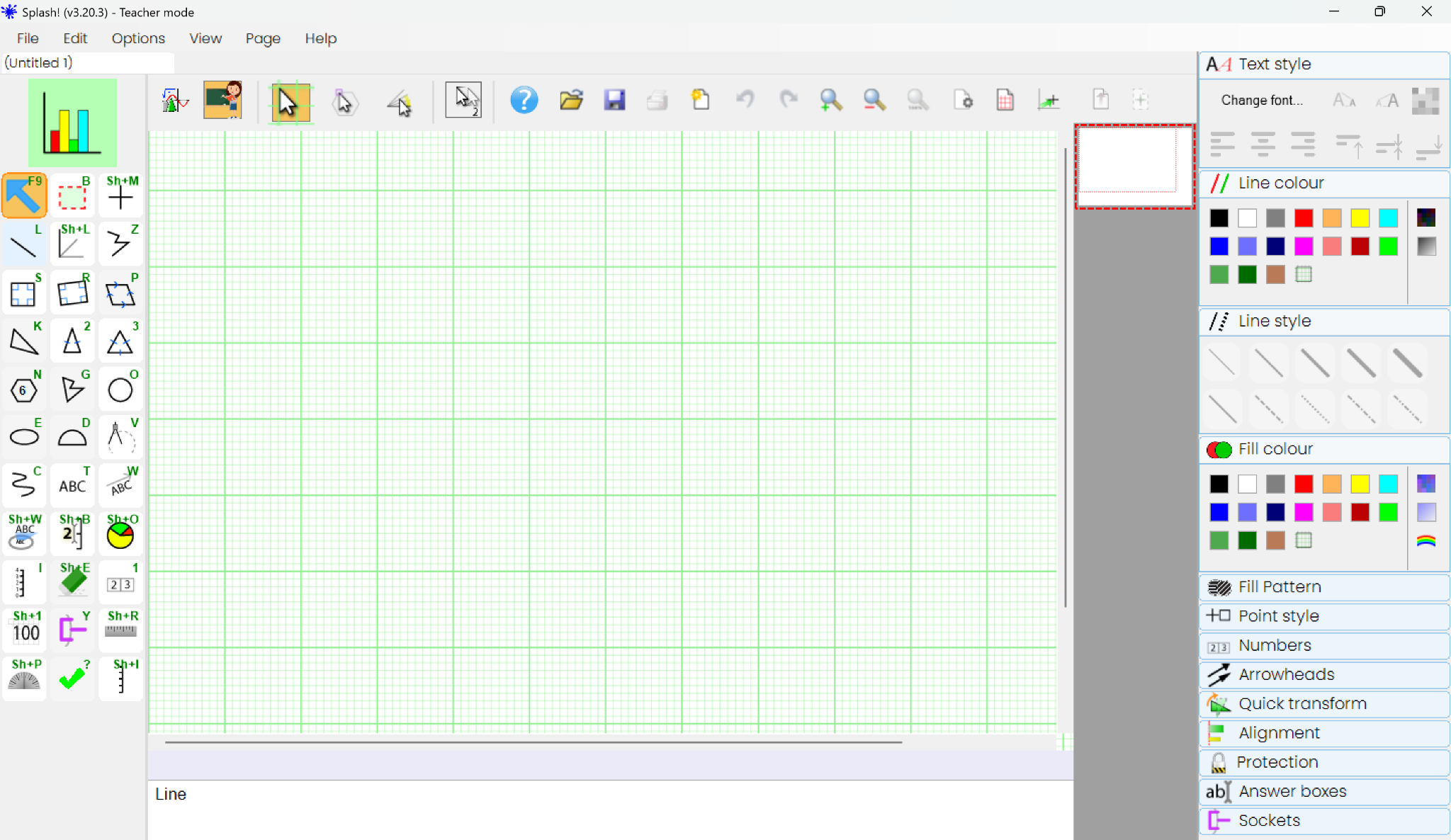
As a person without a physical disability, it never occurred to me how long it might take to explain to someone else where exactly I’d like to place a plot on a graph, or how many steps are involved in explaining something as simple as “move the cursor slightly to the left” - especially if you don’t communicate verbally. When you can point, tap, drag, or click without thinking, you don’t notice the dozens of micro‑decisions your body makes automatically.
Despite its potential, very few switch users currently access Splash!, and the company understandably doesn’t provide switch‑specific guidance because the user base is still extremely small.
That gap is exactly what led to my latest project.
A Custom Grid Set for Switch Access
One of my clients with quadriplegic cerebral palsy uses head switches for all computer access. He is about to transition to secondary school, where expectations and workloads increase - so Splash felt like a perfect fit. The challenge was that there was no existing switch‑accessible pathway into the software.
To bridge that gap, I created a custom Grid set that allows users to control Splash! using one or two switches.
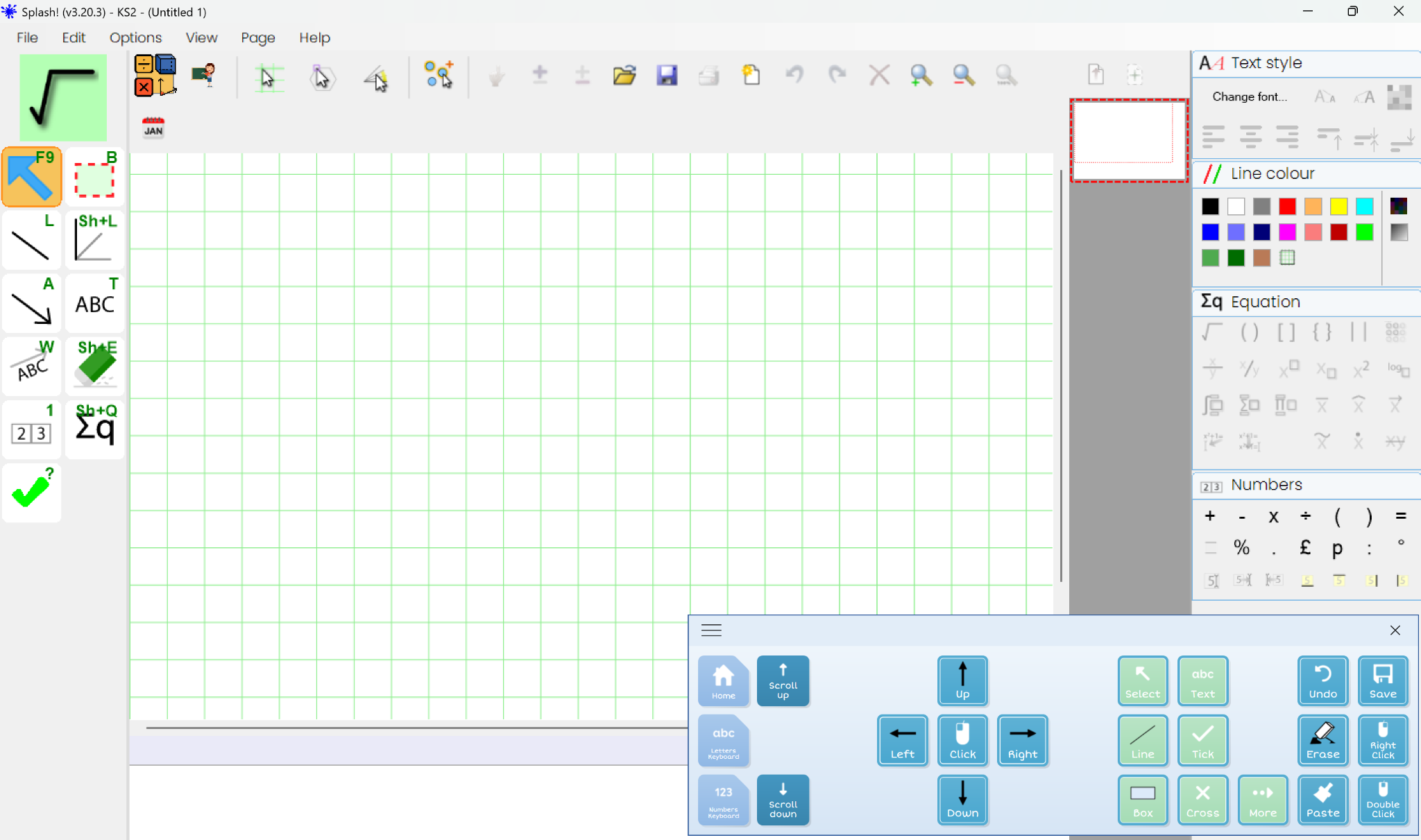
Features currently include:
- Automatically opening Splash!
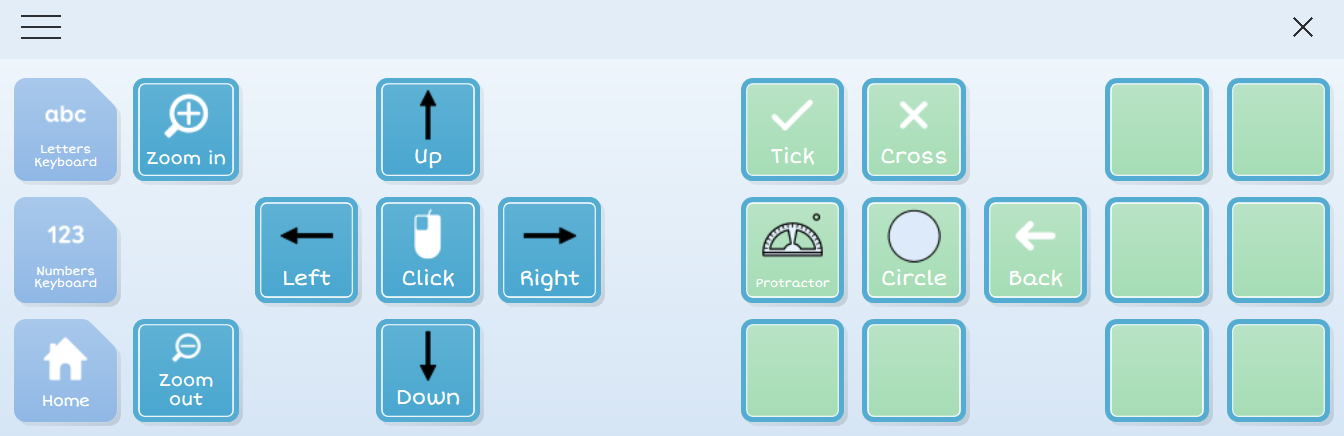
- Overlaying the software as a computer control Grid set
- Selecting tools from the toolbar
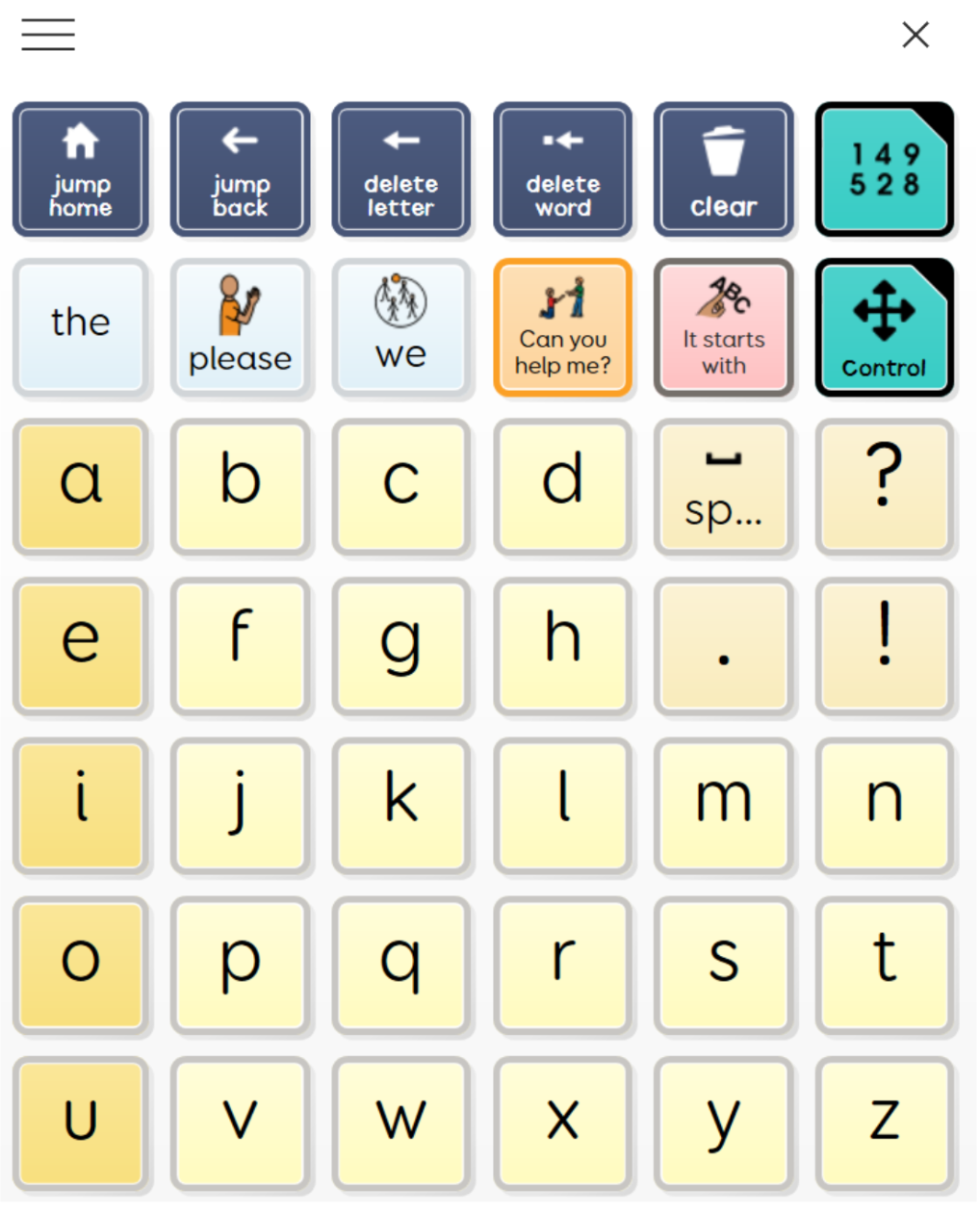
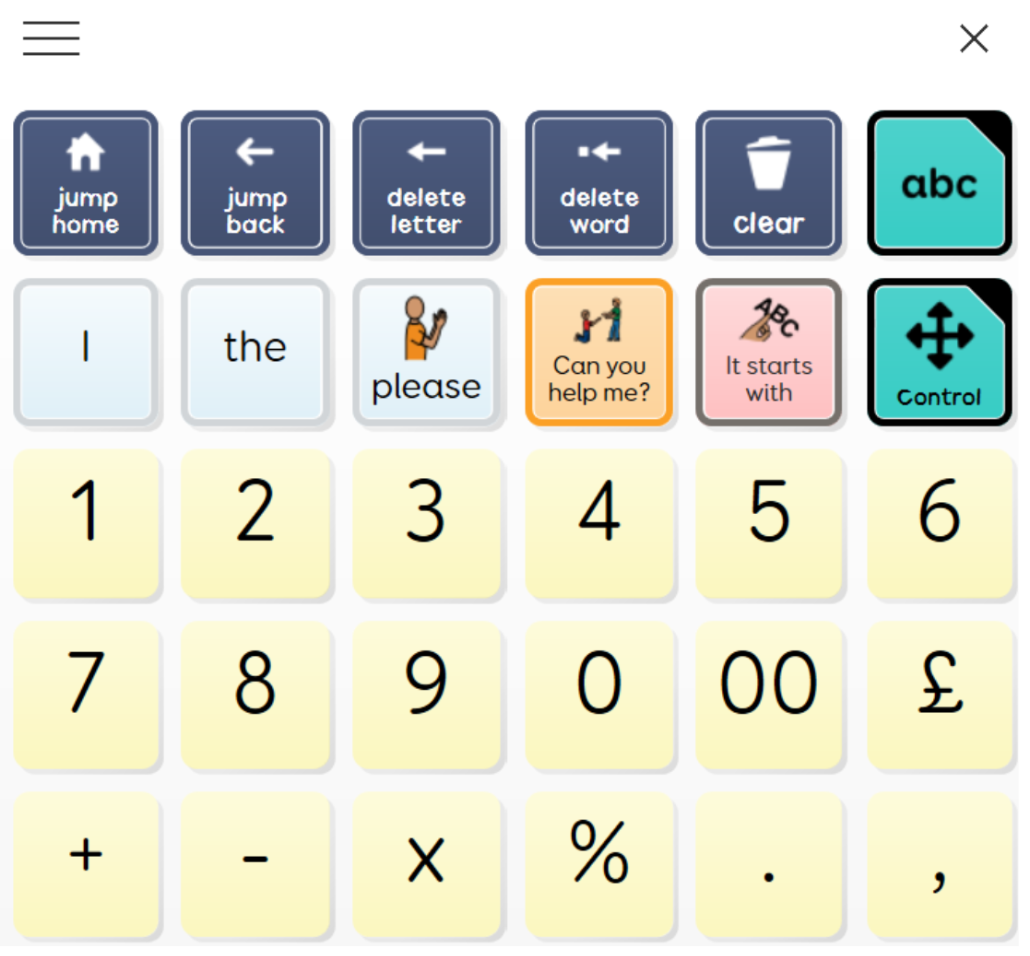
- Incorporating letter and number keyboards, with prediction
- Allows for further tools to be added to the user’s preferences
- A simplified, predictable layout designed for learners who benefit from reduced cognitive load
- The Grid set currently allows for line drawing, box and circle drawing, text inclusion, ticking and crossing work, ruler, protractor, and the number tool.
- It can be programmed to add ANY of the tools within Splash! including equations, shapes, transformations, date stamper, charts, factor trees and many more.
Important to note:
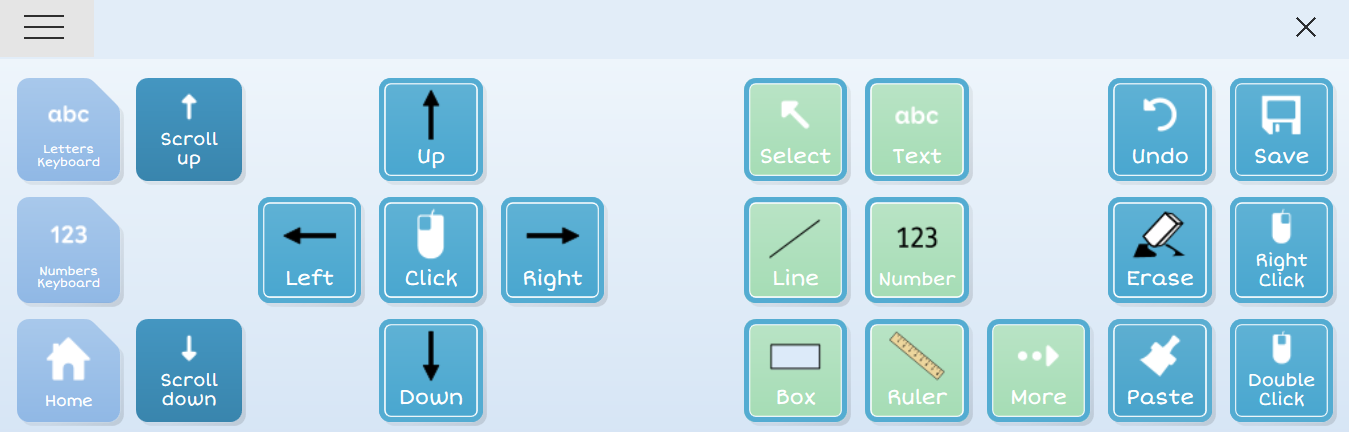
- Click, tool, click - this sequence selects the tool you need, in the right place within Splash!
- Users should not select the tools directly from Splash!, but from the Grid set itself
- Using the 'repeat activate setting' within Grid, you can keep selecting the same button to continue moving the mouse in that direction, without having to navigate back through the options each time. The same applies to scrolling and zooming in and out.
- At the moment, the setup doesn’t allow for fully independent navigation of the taskbar at the top of Splash!, or for independently importing worksheets or files. These are areas I’m continuing to explore, and improvements will come as I gather feedback and keep refining what’s possible for switch users.
The goal was to make Splash not only possible for switch users, but genuinely enjoyable and sustainable. When a system is unfamiliar or overly complex, the cognitive load of navigating it can quickly overshadow the task itself. Maths can be challenging enough on its own - adding the frustration of knowing an answer but not having the means to show it, while trying to hold that information in mind, is exactly what I wanted to avoid. This setup was designed to remove as many barriers as possible so my client had the best chance to focus on the learning, not the logistics of access.
Now Available Online for Others to Use
I’ve now published this Grid set as an Online Grid so you can give it a go yourself and let me know what works well for you - and what could be improved. And if you’re a professional supporting a learner, or a switch user exploring new ways to access creative software, I’d love to hear from you too. You can find it directly within Grid 3 by searching “Splash! Control for Switch Users” in the Online Grids library.
This is very much a first iteration - created for a real client with real‑world needs - and I would genuinely welcome feedback from anyone who tries it. If you have suggestions, questions, or ideas for future versions, please feel free to email me at domore@accesstechnology.co.uk.
Why This Matters
Although this began as a bespoke solution for one young person, it’s opened up a wider conversation for me about creative access, curriculum participation, and what becomes possible when we remove physical barriers - and about how existing assistive technology can be adapted to work for a broader range of people.
Switch access to creative software is still relatively under‑explored, especially for school‑age learners who want to take part in the same activities as their peers. Projects like this help move learners from supported participation towards more independent engagement.
For me, it’s exciting to think about what this could mean for other clients - not just in education, but in leisure, self‑expression, and digital independence.